Working with API server
After running the flowchem with a specific configuration file, a FastAPI server is available automatically and can be accessed through the address: http://127.0.0.1:8000.
In the example provided in the section on Creating Configuration File, the API accessible at the following address will be:

Access to API can be done directly through the web browser or by clients written in different languages. Below, we show how easy it is to access the API, for example, through Python. Access to API commands through Python can be done using the flowchem class.
Send a command
There are two classes of commands available in the API for the user: the PUT command (generally used to send data/command to the device) and GET command (generally used to request data from the device). In practice, both commands are accessed by the user in a similar way.
For example, if the user wants to request data from the device using the “fake_receive_data” command, they must click the “try it out” button in the browser, and then click the execute button.
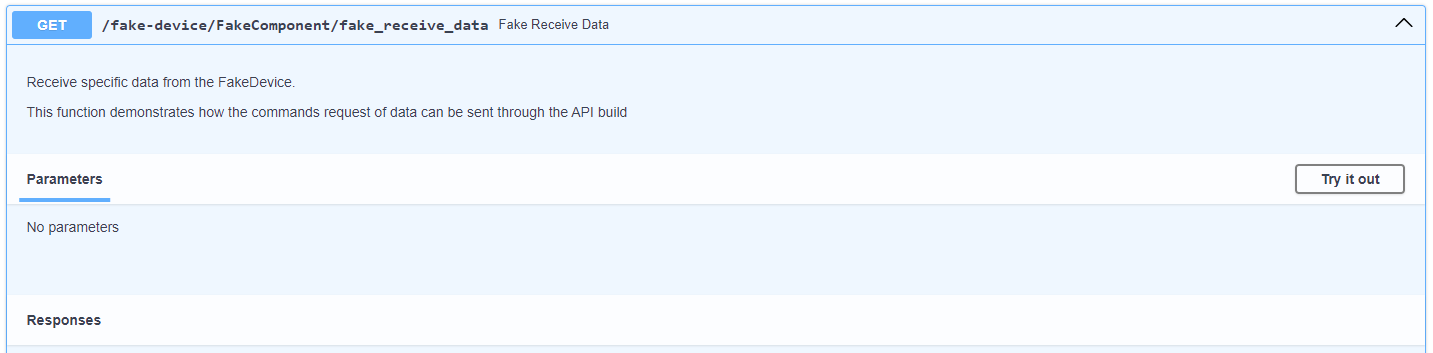
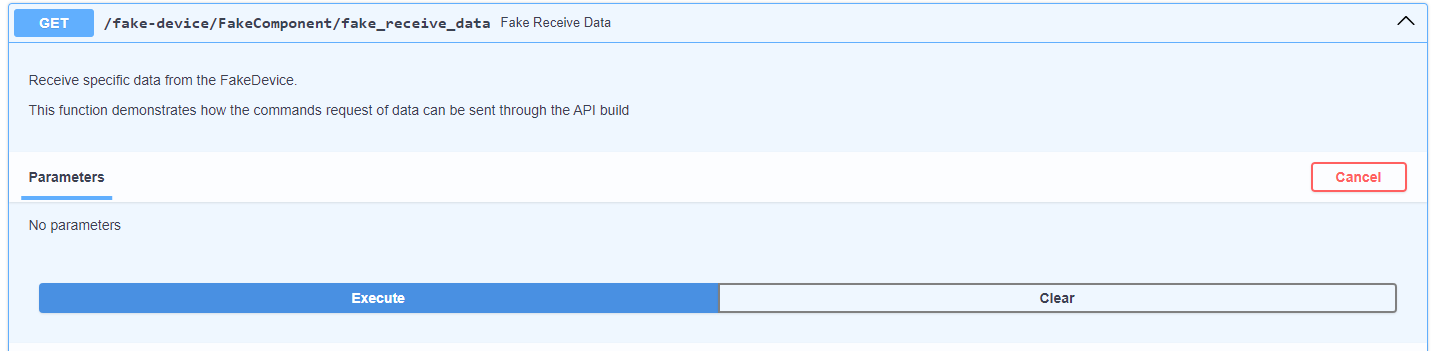
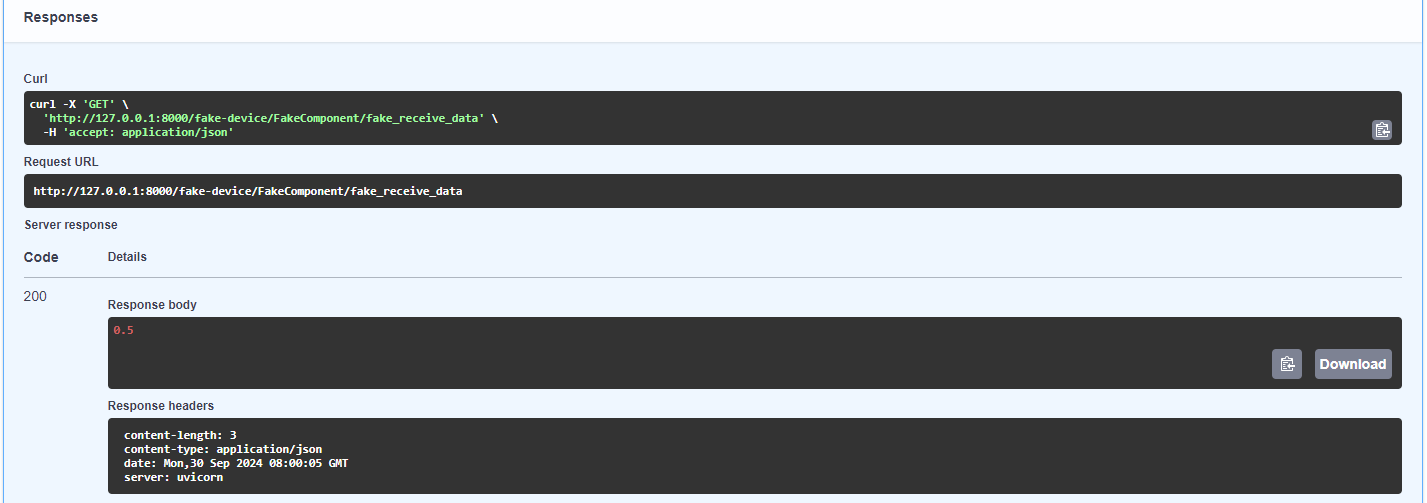
After clicking the button, the command will be sent to the device, and feedback will be received to ensure that everything went well during the data transfer. This feedback can be seen in the “responsive body” window. If everything goes well, the user can see a value for the requested variable. However, if there is an error in the data transmission, the result will be an error message.
Access the API through Python
from flowchem.client.client import get_all_flowchem_devices
# Flowchem devices
flowchem_devices = get_all_flowchem_devices()
The variable flowchem_devices in the code above is a dictionary with all devices connected through the API. With this variable, it is possible to access all components available from the devices. In this example, the my-device has one component that can be accessed through the code below:
from flowchem.client.client import get_all_flowchem_devices
# Flowchem devices
flowchem_devices = get_all_flowchem_devices()

component_fake = flowchem_devices['my-device']['FakeComponent']
This component represents one class. This class has methods that can be accessed through commands available in the API, see more details in tools. For example, if you want to send a command to the component FakeComponent, you can use, according to API interface, a method put as shown below:

The argument parameters to send need to be specified in the method.
from flowchem.client.client import get_all_flowchem_devices
# Flowchem devices
flowchem_devices = get_all_flowchem_devices()

component_fake = flowchem_devices['my-device']['FakeComponent']

component_fake.put('fake_send_command', params={'parameter_1': "something", 'parameter_2': 'something'})
When using either approach, whether using the API or get_all_flowchem_devices(), the same command is sent to the device.
Directly Access API
The user can also go through the request package to gain direct access to the commands available in Python.
import requests

url = 'http://127.0.0.1:8000/my-device/FakeComponent/'
response = requests.get(url)
data = response.json()
print(data)
Using another code languages
Since the devices are available on a server, it is possible to access them using other means besides python. This versatility allows the devices to be controlled using multiple coding languages.